Instructions for connecting a computer to the wired network
As of July 7, 2026, a new method for connecting computers to the wired network has been implemented in all dormitories. The old net.ds.pw.edu.pl system, which used tokens and MAC address registration, is no longer active.
Windows 11
- Connect the computer to the Internet outlet in the wall using a cable.
-
Right-click the network icon on the taskbar.

-
Go to Network and Internet settings.

-
Select the Ethernet connection settings.

-
Select the "Edit" option next to "Authentication settings".

-
Enable IEEE 802.1X authentication and select the "Edit configuration" option.

- Change the settings:
- EAP Method: Protected EAP (PEAP)
- Authentication method: Secure password (EAP-MSCHAP v2)
- Your private identifier: Your login for university Microsoft account without @pw.edu.pl suffix

-
A notification and a "Sign in" button should appear. Click it. If it doesn't appear, try restarting your computer.

-
Enter your university Microsoft credentials and click OK.

-
Confirm the connection.


macOS
- Connect the computer to the Internet outlet in the wall using a cable.
-
The login window should appear automatically. Enter your university Microsoft credentials and click OK.

-
Confirm the validity of the certificate.

-
Enter your login credentials (to your computer) to approve the certificate.


Linux with GNOME interface (eg. Ubuntu)
- Connect the computer to the Internet outlet in the wall using a cable.
-
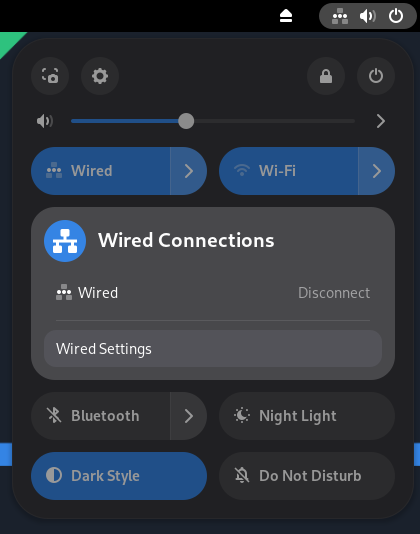
Enter the quick settings in the upper-right corner.

-
Expand the Wired Connections menu and go to Wired Settings.

-
Enter the wired connection settings.

-
Go to the "Security" tab

- Enable "802.1x Security". Change the settings:
- Authentication: Protected EAP (PEAP)
- No CA certificate is required
- PEAP version: Automatic
- Inner authentication: MSCHAPv2
- Username and password: login credentials for your university Microsoft account